
This guide shows you how to manually install the Rockchip USB Driver on a Windows computer. It works on Windows 11, 10, 8.1, 8 and 7, and lets the computer detect Rockchip tablets, TV boxes and other devices.
Install the Rockchip USB Driver manually
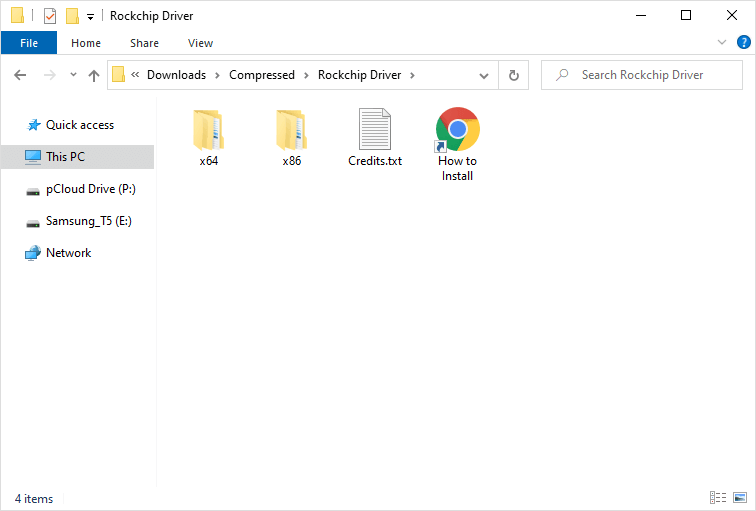
- Download the Rockchip Driver package and extract (unzip) it to a folder you can find easily, such as the Desktop. If you have already done this, skip to the next step.

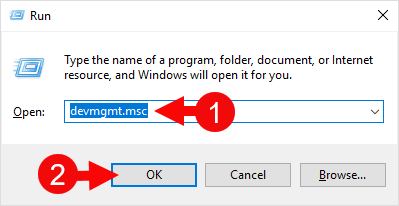
- Press Win + R, type devmgmt.msc and press Enter to open Device Manager.
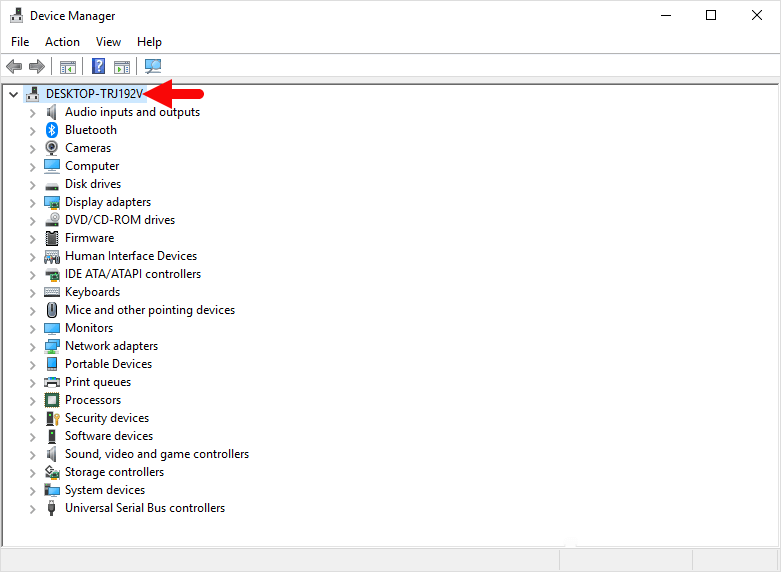
- In Device Manager, click the name of your computer at the top of the list.
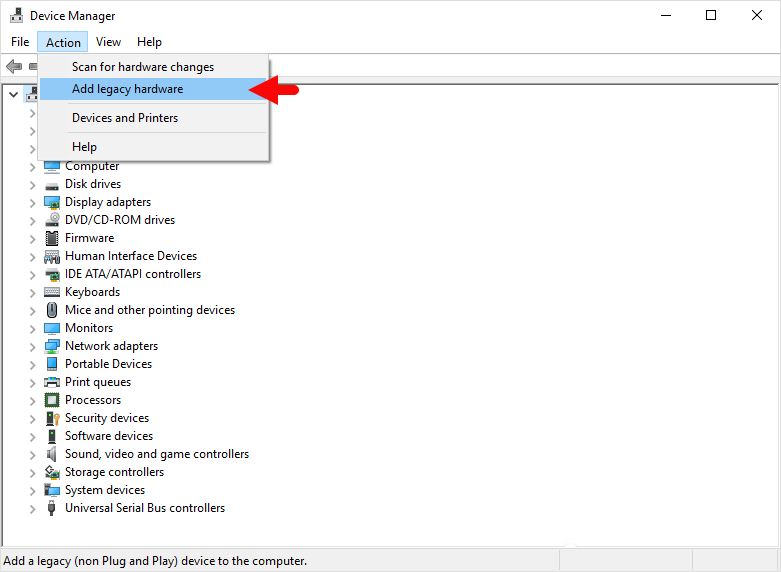
- Open the Action menu and choose Add legacy hardware.
- When the Add Hardware wizard opens, click Next.
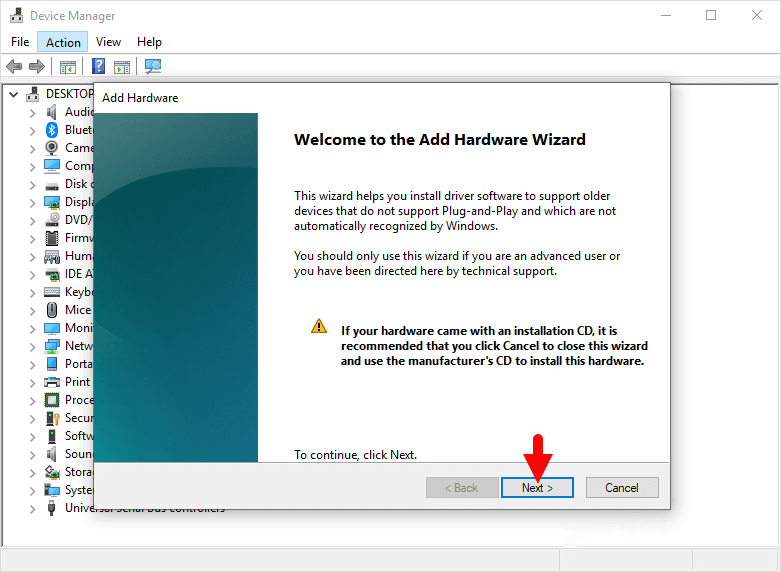
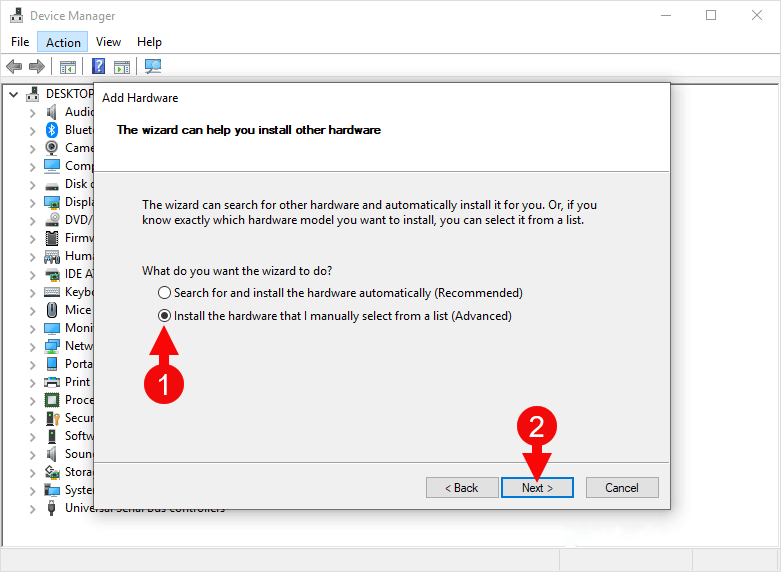
- Select Install the hardware that I manually select from a list (Advanced) and click Next.
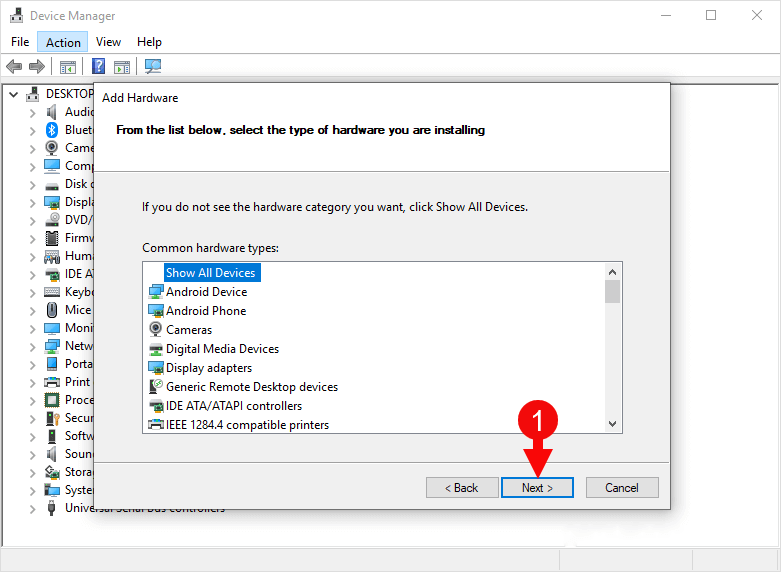
- Keep Show All Devices selected and click Next.
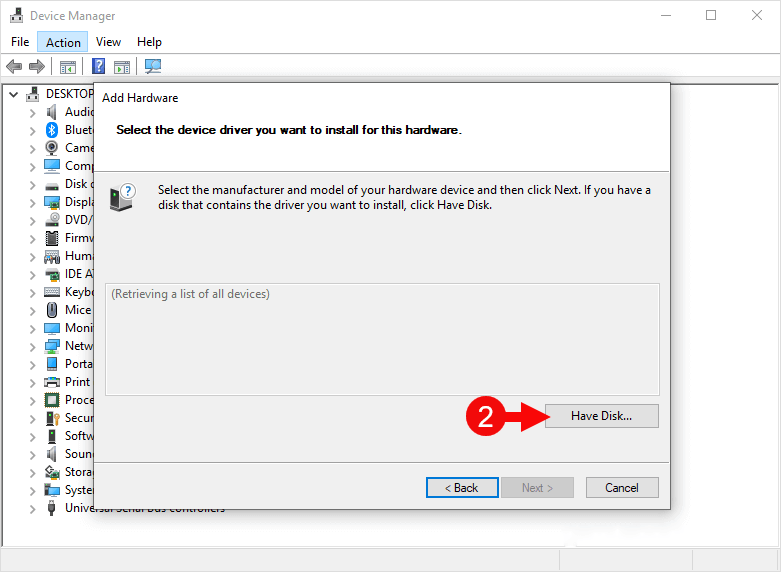
- Click Have Disk, then click Browse.
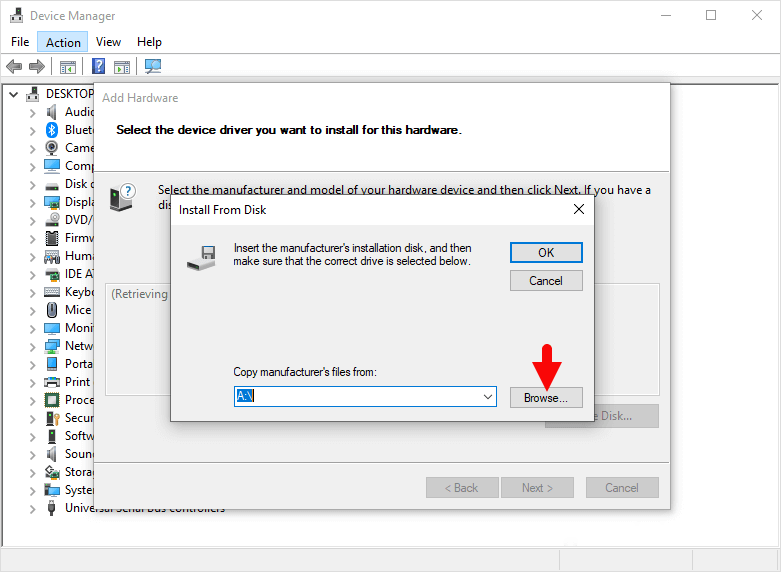
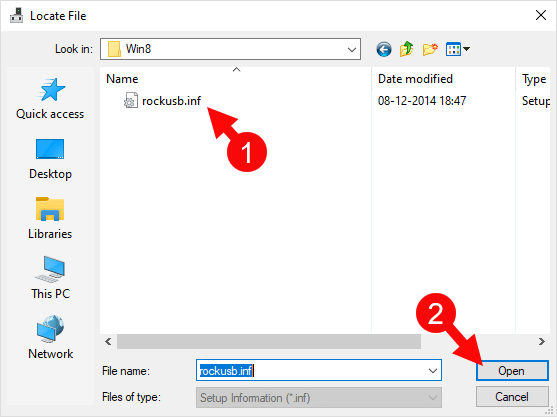
- Open the extracted driver folder, select the .inf file and click Open, then click OK.
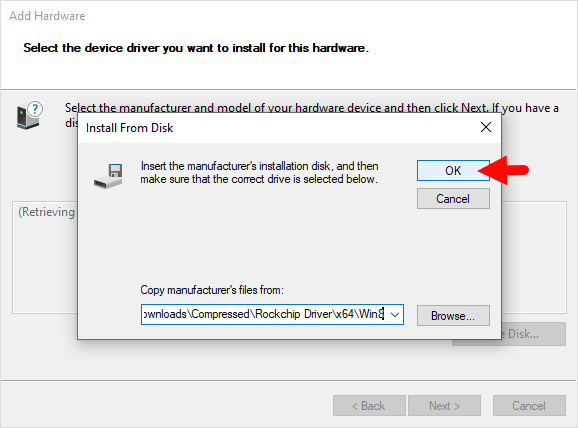
- Select the driver shown in the list and click Next, then click Next again to start the installation. If a Windows Security prompt appears, choose Install.
- Click Finish. If Device Manager shows the new device with Code 10, ignore it; the warning clears after a restart.
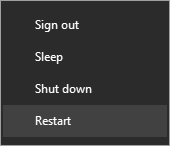
- Restart the computer.
Once the computer has restarted, you can connect your Rockchip device to the computer and use it with flash tools or for file transfer.
Readme Once
- Driver Signature Error: If Windows refuses to install the driver because it is not digitally signed, follow the How to Fix Driver Signature Error guide and then try again.
- Driver Easy: If you still have trouble with the USB driver, you can use the Driver Easy application to find and install the required drivers automatically.
- Credits: The Rockchip Driver is created and distributed by Fuzhou Rockchip Electronics Co., Ltd. All credit goes to them for making the driver available for free.