
This guide shows you how to install the Amlogic USB Driver on a Windows computer. It works on Windows 11, 10, 8.1, 8 and 7, and lets the computer detect Amlogic smartphones, tablets and Android TV boxes.
Install the Amlogic USB Driver
- Download the Amlogic Driver package and extract (unzip) it to a folder you can find easily, such as the Desktop. If you have already done this, skip to the next step.

- Open the extracted folder. To check whether your Windows is 32-bit or 64-bit, open Settings > System > About and look at System type.
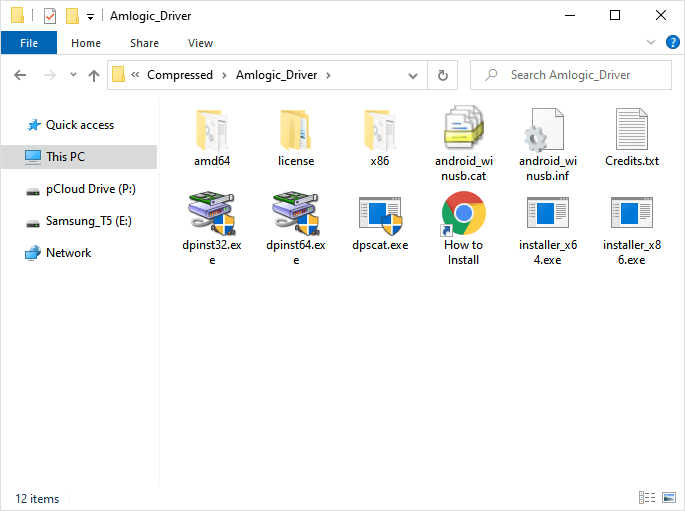
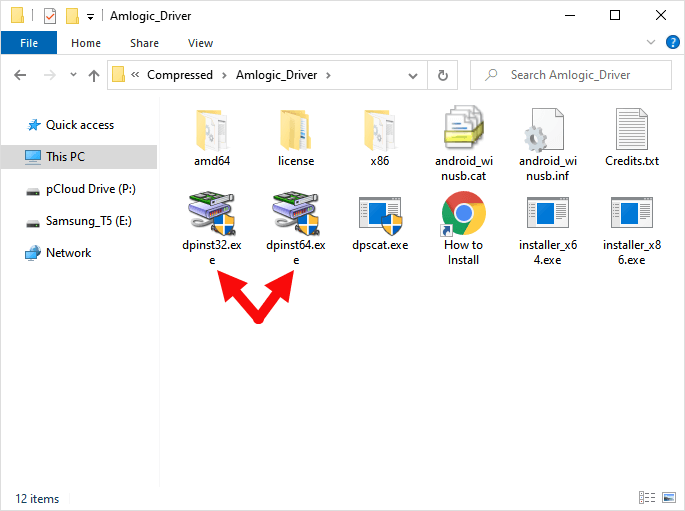
- Double-click dpinst64.exe on 64-bit Windows, or dpinst32.exe on 32-bit Windows.
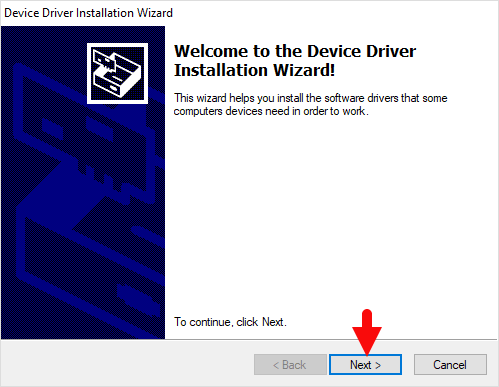
- Click Next to start the installation. If a Windows Security prompt appears, choose Install.
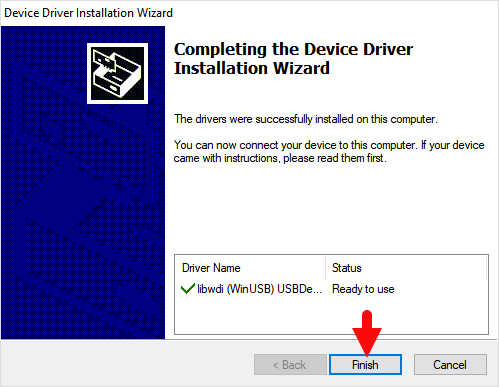
- When the installation is complete, click Finish.
- Restart the computer.
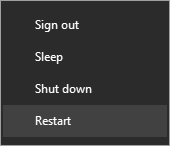
Once the computer has restarted, you can connect your Amlogic device to the computer and use it with the USB Burning Tool or for file transfer.
Readme Once
- Driver Signature Error: If Windows refuses to install the driver because it is not digitally signed, follow the How to Fix Driver Signature Error guide and then try again.
- Driver Easy: If you still have trouble with the USB driver, you can use the Driver Easy application to find and install the required drivers automatically.
- Credits: The Amlogic Driver is created and distributed by Amlogic, Inc.. All credit goes to them for making the driver available for free.